
Unlocking a smart phone/tablet using NFC
Today we will take a look together at a variant that is not quite so common but all the more practical for it - and that is nothing other than unlocking a smart phone using NFC technology. What is it good for, you ask. There is a simple answer to this question. From our own experience, we can recommend this method, for example, for the car, for the office, but it will also find a use at home or with your laptop.
We warn in advance that the following procedure and the process of unlocking the phone using NFC applies to the Android 5 Lollipop operating system and higher versions of this platform - our procedure is specifically demonstrated on a Google Nexus 5 device, Android version 6.0.1.
Step 1
On your device, open the phone settings and select the Security option. On an older version of Android, instead of Security select the Lock screen option. First you need to set up a screen lock using a PIN, password or gesture.
Step 2
Now you need to turn on the Smart Lock service. In our case this service is directly in the Security option menu, but on older versions you can turn this service on in one of the options there.
Step 3
In the next step we open the Smart Lock tab. Here we have a choice of several options. We will be most interested in the first one, that is, Trusted device. After tapping this item we have a choice of two options - here we select the NFC option.
Step 4
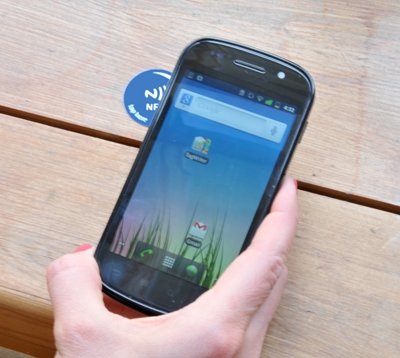
Now comes the turn to use your NFC chip in any form - whether a plain NFC tag, a label, a sticker or an NFC key fob - we hold it up to the mobile phone (to the back cover, depending on the location of your NFC sensor). After reading the chip, a message pops up informing us that the NFC tag was successfully found. To finish, only the last step remains, and that is naming your NFC chip.
Congratulations, you have just set up unlocking your darling using NFC technology. You can verify the functionality itself by holding your phone up to the set-up NFC tag.
The NFC label we used has an NTAG213 chip. You can buy these labels and, of course, plenty of other products based on NFC technology right here, in our e-shop www.NFCmix.com.